I learned basic skills for Edge Extension. Now, it’s time to start developing for my first extension!
I’m going to try developing exactly same as Microsoft Edge “History” popup.
See below.
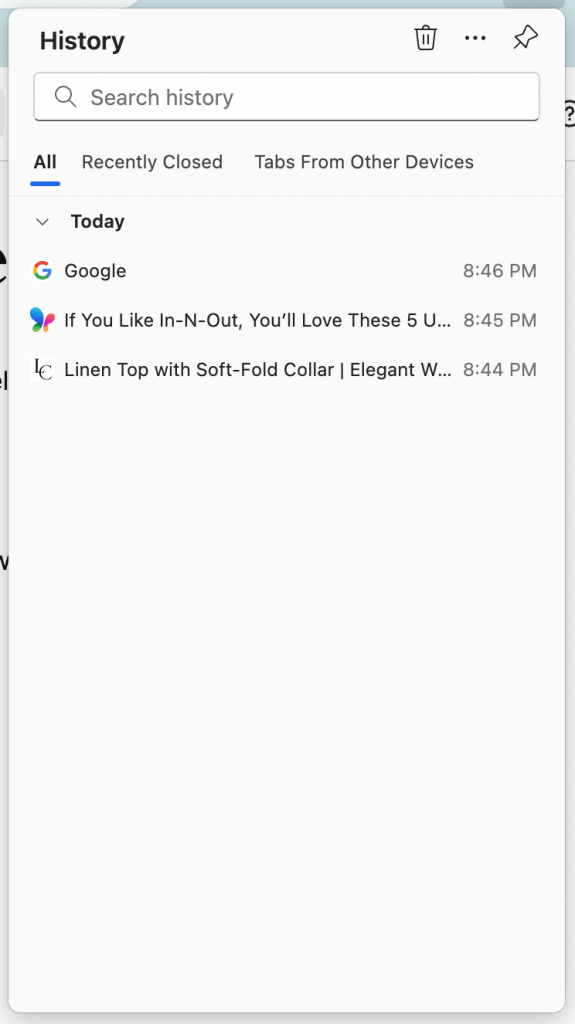
Today, I’m going to create these files.
- manifest.json
- popup.html
- four .png icons
The directory looks like this below.

1. Create manifest.json
Create new json file. The file has name, version, manifest_version, description, icons and action entries.
{
    "name": "HistoryMark",
    "version": "0.0.0.1",
    "manifest_version": 3,
    "description": "Mark the webpages and review them from history!",
    "icons": {
        "16": "icons/historyIcon_16.png",
        "32": "icons/historyIcon_32.png",
        "48": "icons/historyIcon_64.png",
        "128": "icons/historyIcon_128.png"
    },
    "action": {
        "default_popup": "popup/popup.html"
    }
}
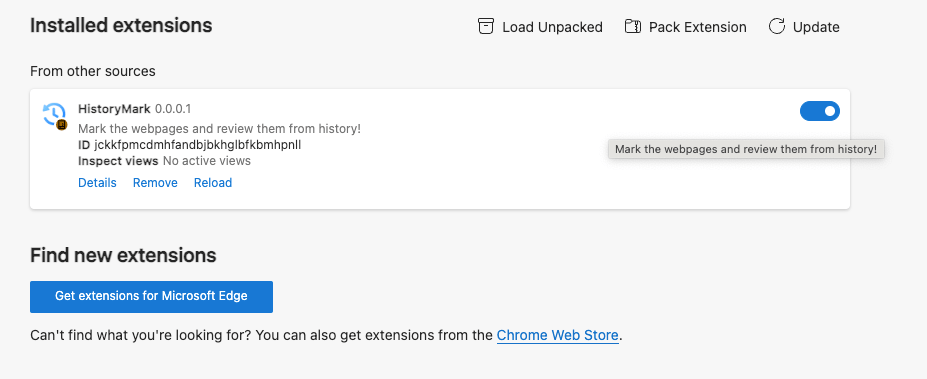
The “name”, “version” and “description” are used in the Edge Extensions page see the image below.
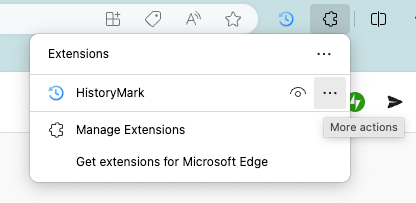
The “name” is used in the Extensions list.
After creating the manifest.json file, save it in the project folder.
2. Prepare icon images
Download free icon images for the extension.
I downloaded the images from the link. Change the image size and download four sizes. (16px, 32px, 64px, 128px).
Save it in icons folder in the project folder.
3. Create popup.html
Create new html file. The file has only title. The dimension is 300px * 600px.
<!DOCTYPE html>
<html>
    <head>
        <meta charset="utf-8" />
        <style>
            body {
                width: 300px;
                height: 600px;
            }
        </style>
    </head>
    <body>
        <h1>History</h1>
    </body>
</html>
After creating the popup.html, save it in the “popup” folder underneath the project folder.
4. Sideload the Extension to Local Browser
According to the tutorial below, add the extension project to the Extensions page.
Sideload an extension to install and test it locally

Once the upload is complete, you can get your extension icon on the toolbar.
If you click on the extension icon, you can see the popup dialog you created!
Yes, there is only title “History”… But well done!

 Journey of learning
Leave a comment