I’m going to develop exactly same popup dialog as Microsoft Edge “History” popup.

After researching, it seems the best way is to use the chrome.history API, so I decided to implement it using that!
1. Add permissions to manifest.json
If you see the previous post, I already have my simple simple Edge Extension in local. So, I added just one entry in the manifest.json to get permission to use “chrome.history” API.
    "permissions": [
        "history"
    ]
Don’t forget comma”,” at the end of previous line!!
2. Edit HTML file to show the browsing history
This code below is the complete popup.html file for my extension.
This time, I added <ui> tag to show the browsing history
and <script> tag to get the hisotry with using chrome.hisotry API and set it to the list.
<!DOCTYPE html>
<html>
    <head>
        <meta charset="utf-8" />
        <style>
            body {
                width: 300px;
                height: 600px;
            }
        </style>
    </head>
    <body>
        <h1>History</h1>
        <ul id="history-list">
        </ul>
        <script src="getHistory.js"></script>
    </body>
</html>
3. Create a JavaScript file
To get the history with chrome.history, I created a new JavaScript file called “getHistory.js”.
This is the complete file.
const historyList = document.getElementById("history-list");

chrome.history.search({ text: '', maxResults: 50 }, (results) => {
    results.forEach(item => {
        const listItem = document.createElement("li");
        listItem.textContent = item.title;

        historyList.appendChild(listItem);
    });
});
- Get <ui> list element by the Id(“history-list”)
- Use chrome.history.search() method
- text: ”: A free-text query. I left this empty to retrieve all pages.
- maxResults: 50: The maximum number of results to retrieve. Defaults to 100.
- (results) => {}: This is a callback function.
- Create a list element <li> and set text with item.title.
- historyList.appendChild(listItem): Append the list<li> to the “history-list”
- Repeat all items.
The return value from “chrome.history.search()” is a list of “HistoryItem” object. There are many properties we can use (title, url, id, lastVisitTime and so on). But there is no “icon” property in the object. I want to search how to get the icon next.
HistoryItem Object in Chrome API
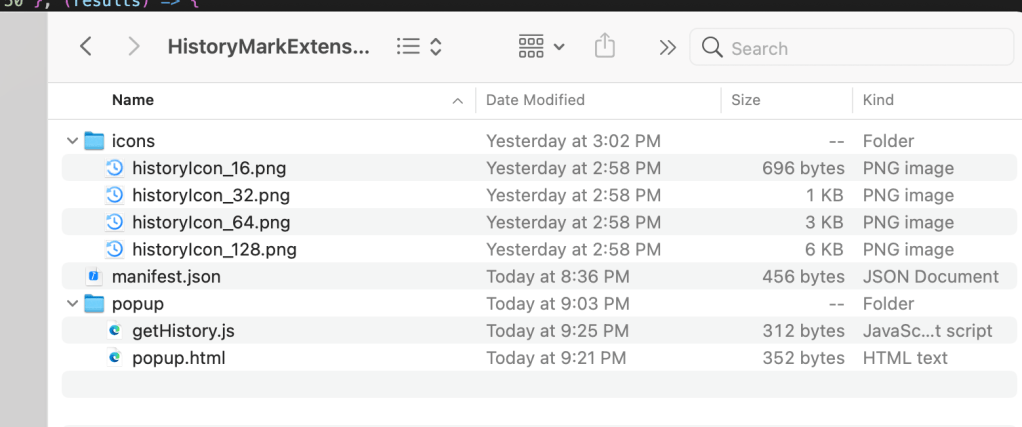
4. Project folder structure
Now my Extension Project folder looks like this,
5. Reload the Extension and Show History
Go to “Manage Extensions” page, and Reload my extension.
When you click on the extension icon, you can see all titles of the browsing history.
My history includes Japanese pages. Never mind! My first language is Japanese!

See you!
Noes
- Do I need to get permission to access history if it is released for other people?
- How to show page icons at the first column of the list?
 Journey of learning
Leave a comment