Steps
- Create GitHub account and repository
- Install git into your computer
- SSH Client Setup (Generate a new SSH key and add it to the ssh-agent)
- SSH Server Setup (Add SSH pub key to your GitHub account)
- Git clone, add, commit and push
1. Create GitHub account and repository
- Got to the link and sign up for GitHub.
It is really straight forward. Please follow the instruction they give.
GitHub

2. Install git into your computer
- Go to git website and download git.
git – home - Select “Download for mac” button.

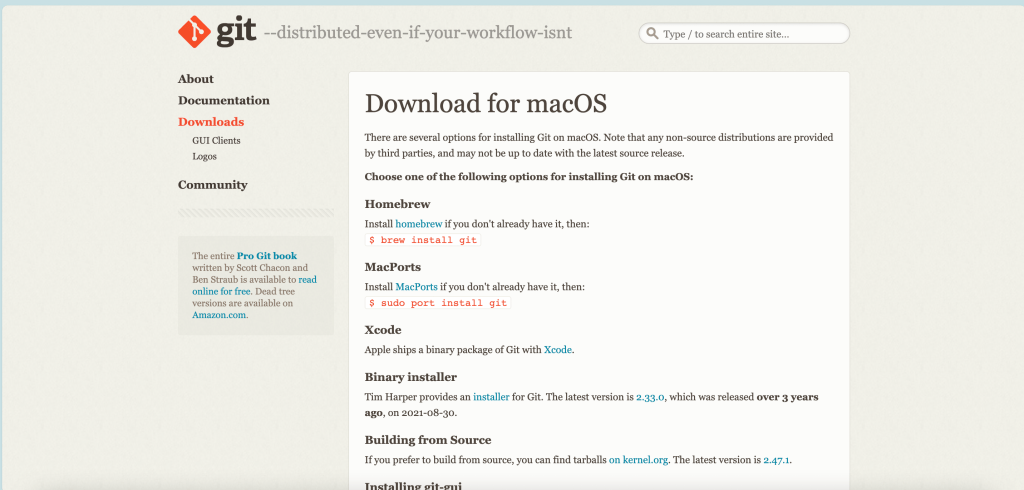
- Install Homebrew to install git… (if you don’t install it)
Homebrew
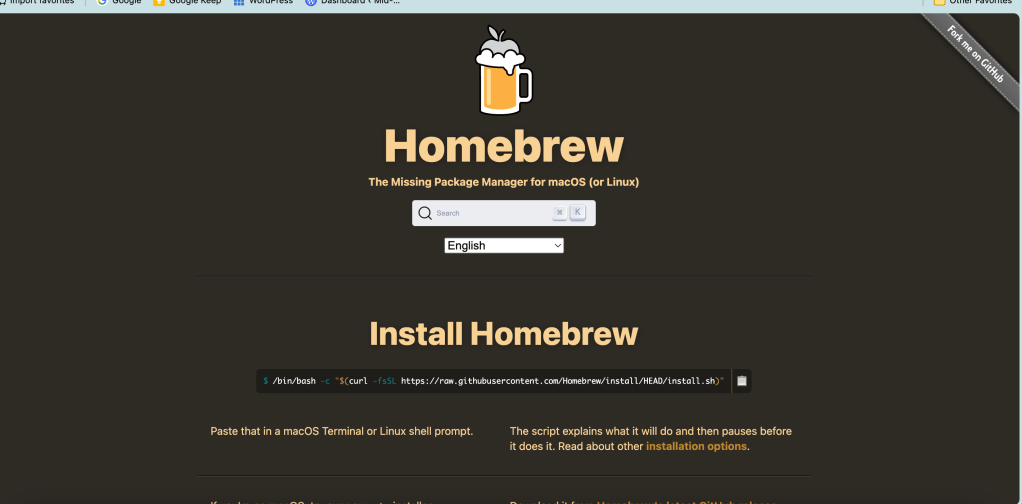
- Open terminal and run this command below to install Homebrew.
/bin/bash -c "$(curl -fsSL https://raw.githubusercontent.com/Homebrew/install/HEAD/install.sh)"- Run the command to install git.
brew install git- Run the command to check if git is installed. If it returns the version, you installed git successfully.
> git --version
git version 2.47.1
3. SSH Client Setup
3.1 Generate SSH key
You need to generate SSH key to connect to the GitHub repository with SSH.
Your computer is the SSH Client, and GitHub repository is the SSH Server. Basically, SSH key pair (private key and public key) is generated in the Client.
The Client sends the public key to the Server.
- Generate SSH key pair. Run this command below.
Replace the email address to your registered address to GitHub.
This creates a new SSH key, using the provided email as a label.
> ssh-keygen -t ed25519 -C "your_email@example.com"
Generating public/private ed25519 key pair.- You will ask “which to save”? Press enter with empty to accept the default path.
Enter a file in which to save the key (/Users/YOU/.ssh/id_ALGORITHM): [Press enter]- You will ask “passphrase”? Press enter with empty.
Enter passphrase (empty for no passphrase):
Enter same passphrase again:
Then it will generate the new ssh key. You can see the key’s random art image looks like:
+–[ED25519 256]–+
| ..Eo|
==
+—-[SHA256]—–+
3.2 Add SSH key to ssh-agent
- Run this command
> eval "$(ssh-agent -s)"
Agent pid 28063- Create SSH configuration file if it doesn’t exist
> touch ~/.ssh/config- Open the config file with vi command.
> vi ~/.ssh/config- Copy this settings and paste it into the config file.
To save and close, type escape key, type “:wq” and Enter key.
Host github.com
  AddKeysToAgent yes
  UseKeychain yes
IdentityFile ~/.ssh/id_ed25519- Run this command to add your private SSH key to ssh-agent.
> ssh-add ~/.ssh/id_ed25519
Identity added: /Users/user1/.ssh/id_ed25519 (youremail@xxx.xxx)
4. SSH Server Setup
In this section, copy and paste your public SSH key to your GitHub account.
- Run this command to copy the public key
pbcopy < ~/.ssh/id_ed25519.pub- Go to your GitHub account > Settings.

- Select “SSH and GPG keys” > Click on “New SSH key” button.
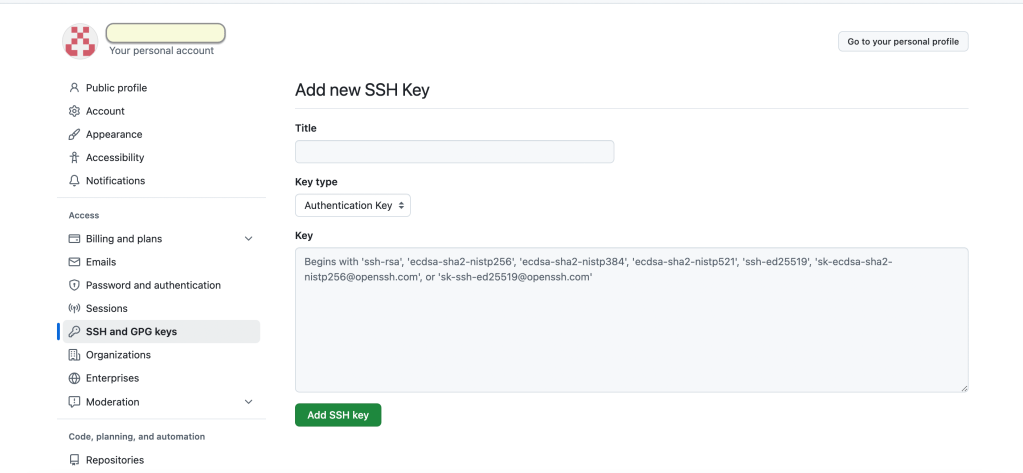
- Enter your key’s Title.
- Select “Authentication key”.
- Paste your public key that you copied with “pbcopy” command.
- Click on “Add SSH key” button.
- You can see the new public key is added
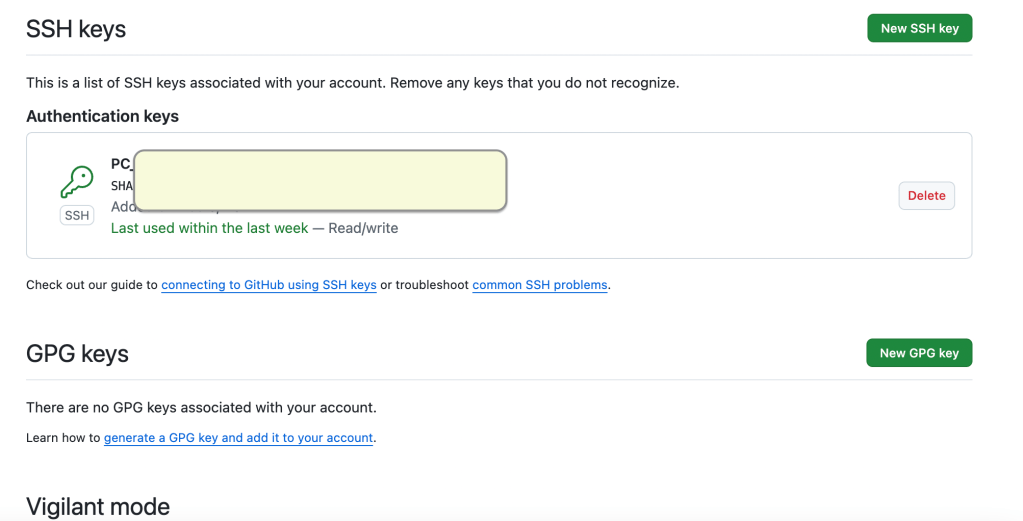
Now, you can connect to GitHub repository with SSH!!
5. Git clone, add, commit and push
If you have some files already, you can clone the repository and add/commit/push!
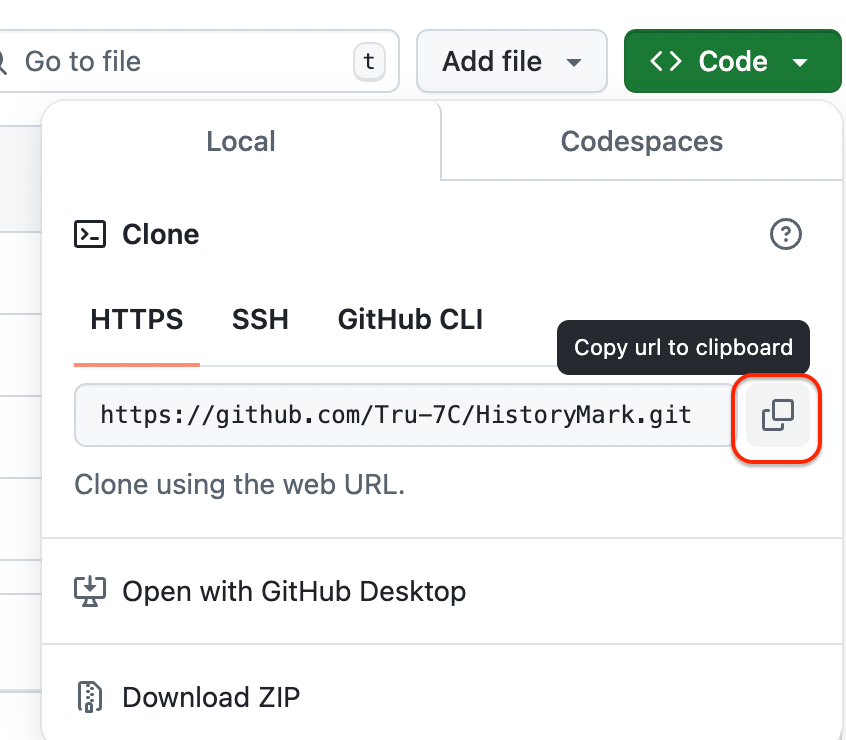
To get the git repository URL, click “Code” button and click “copy” icon.
 Journey of learning
Leave a comment