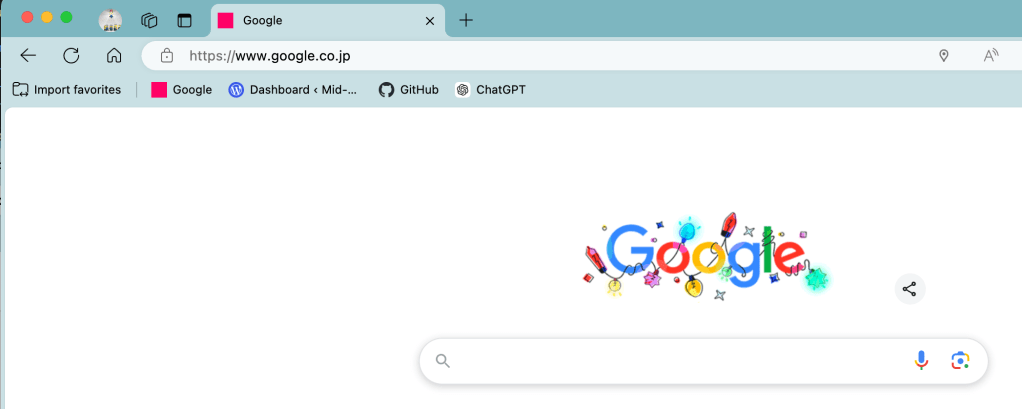
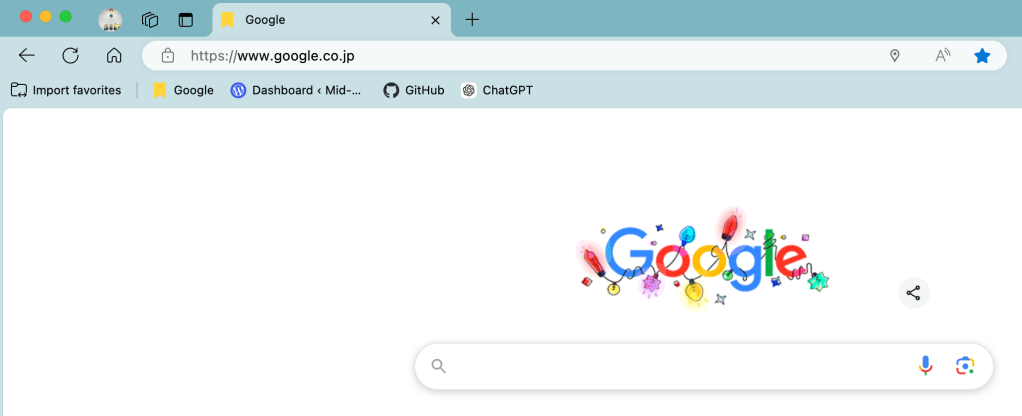
I created the Edge Extension to set an SVG format favicon when you double click the page.
I will introduce how to implement it.
0. Prerequisites
You need to download SVG.js library to create SVG format data in JavaScript that runs in Web Browser.
You can see the instructions in the previous post.
Also, you should have some Chrome Extension project that has content scripts.
1. content.js
In the content.js, I added one event handler to catch the double click event.
In the event handler, I created a new SVG format image and replaced the current favicon to it. The code is the complete code for the content.js that will run in the injected URL page.
function setFavicon(svgContent) {
    const base64Svg = btoa(unescape(encodeURIComponent(svgContent)));

    const head = document.head;
    head.querySelectorAll("link[rel~='icon']").forEach((el) => el.remove());

    const newFavicon = document.createElement('link');
    newFavicon.rel = 'icon';
    newFavicon.type = 'image/svg+xml';
    newFavicon.href = `data:image/svg+xml;base64,${base64Svg}`;

    head.appendChild(newFavicon);
}

document.addEventListener('dblclick', (event) => {
    var draw = SVG().addTo('body').size(100, 100);
    draw.rect(100, 100).attr({ fill: '#f06' }).move(0, 0);
    const svgContent = draw.svg();

    setFavicon(svgContent);
});
In the “addEventListener()” function, I added a SVG data. and draw a rectangle that fills with pink color. I export the data into “svgContent“.
After creating the new SVG image, it calls “setFavicon” function.
In the “SetFavicon” function, it calls “btoa()” function. btoa() is a built-in browser function used to encode a string into Base64 format. It is used to embed image data directly in HTML or CSS (e.g., data:image/png;base64,…)
encodeURIComponent
Converts an SVG string to UTF-8 and encodes special characters into a safe format. It is allowed to use only ASCII code.
unescape
Reverts the encoding applied byencodeURIComponentback to its original form.
btoa
Finally, encodes the result in Base64 format.
In the second section, it removes the current favicon.
In the third section, it defines the new favicon.
I would like to expalin the part of “newFavicon.href“. This is called data URL.
A Data URI is a method for embedding resource data directly into a URL. Its format is as follows:
data:[MIME type];[encoding],[data]data:Indicates the start of the Data URI.image/svg+xml:Specifies the data type (in this case, an SVG image).base64:Specifies that the data is encoded in Base64 format.${base64Svg}:Contains the Base64-encoded SVG data.
This approach allows you to use images directly without loading external files, making resource management easier.
Lastly, it appends the new favicon to the double-clicked page.
2. Use SVG file to set the Favicon
If you want to use already saved SVG file to the new favicon, you can just set the path to the SVG file in href element.
This is a sample code to load a svg file and set it into the new favicon.
document.addEventListener('dblclick', (event) => {
    const head = document.head;
    head.querySelectorAll("link[rel~='icon']").forEach((el) => el.remove());

    const newFavicon = document.createElement('link');
    newFavicon.rel = 'icon';
    newFavicon.type = 'image/svg+xml';
    newFavicon.href = chrome.runtime.getURL('icons/bookmark.svg');

    head.appendChild(newFavicon);
});
Don’t forget to add the SVG file path to “web_accessible_resources” in the manifest file.
   "web_accessible_resources": [
    {
        "resources": ["icons/bookmark.svg"],
        "matches": ["<all_urls>"]
    }
    ],
 Journey of learning
Leave a comment