In this post, I will introduce you how to use chrome.history.search() method to retrieve the browser history in Browser Extension.
Manifest
First, You need to declare “history” permission into your manifest.json file.
For example,
 {
   "permissions": [
        "history"
    ]
}
Chrome.history.search() method
Chrome.history.search() method has two parmeters. You can get your desired history by using the query parameter.
chrome.history.search(
  query: object,
  callback?: function,
)
Query
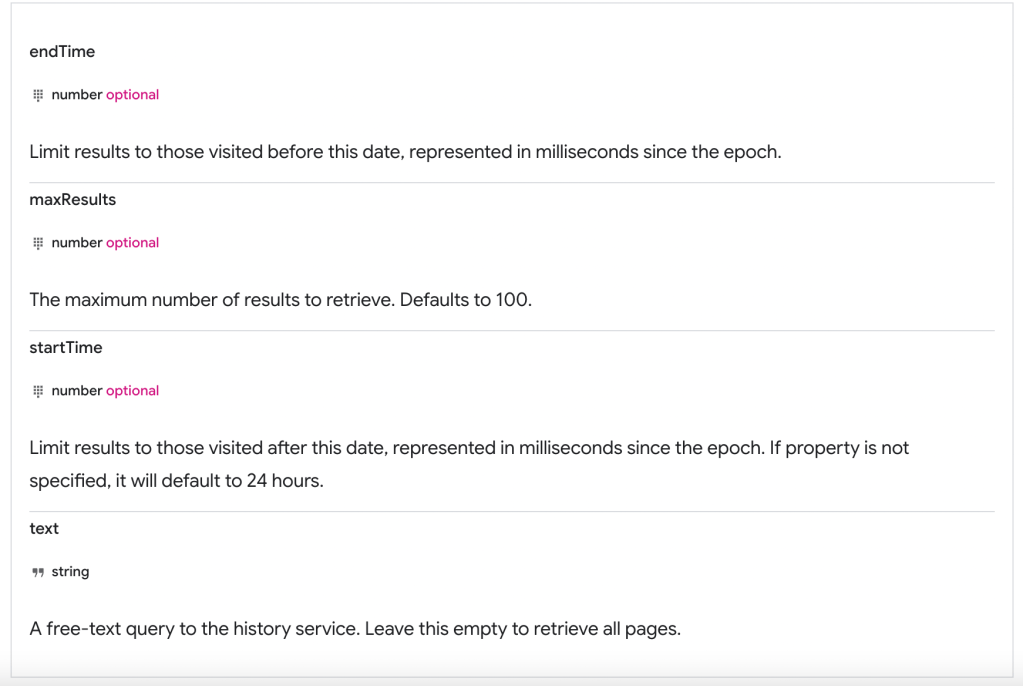
This is an image copy from official website – chrome.history API.
There are four items that you cas use as query; endTime, maxResults, startTime and text.
Sample1: Get one week history
Define oneWeekAgo and use it to the “startTime” query. The date/time must be expressed in millisecond.
Put empty to the “text” query.
let oneWeekAgo = new Date().getTime() - 7 * 24 * 60 * 60 * 1000;

chrome.history.search({ text: '', startTime: oneWeekAgo}, (results) => {
     // your callback function
    });
});
The result was all history from now to one week ago.
But if it exists more than 100 pages, it will return only 100 pages from now. In this case, you need to use maxResults query as well.
This is an improved version of the sample code.
let oneWeekAgo = new Date().getTime() - 7 * 24 * 60 * 60 * 1000;

chrome.history.search({ text: '', startTime: oneWeekAgo, maxResults: 10000}, (results) => {
     // your callback function
    });
});
Sample2: Get yesterday’s history
This time, let’s use “startTime” and “endTime”. Search with startTime = yesterday’s midnight and endTime = today’s midnight.
let now = new Date();
let todayMidnight = new Date(now.getFullYear(), now.getMonth(), now.getDate()).getTime();
let yesterdayMidnight = todayMidnight - 24 * 60 * 60 * 1000;

chrome.history.search({text: '', startTime: yesterdayMidnight, endTime: todayMidnight, maxResults: 10000}, (results) => {
     // your callback function
    });
});
 Journey of learning
Leave a comment