Prerequisites
This article focuses on developing Edge Extensions. In this post, I will explain how to use the SVG.js library within a Content Script.
What’s SVG.js?
SVG.js is a lightweight JavaScript library that makes working with SVG (Scalable Vector Graphics) easy. It provides a simple and intuitive API for creating, manipulating, and animating SVG elements directly in the browser.
Step by step instructions
- Install SVG.js
- Declare the SVG.js in the manifest file
- Use SVG.js library in the content.js
1. Install SVG.js
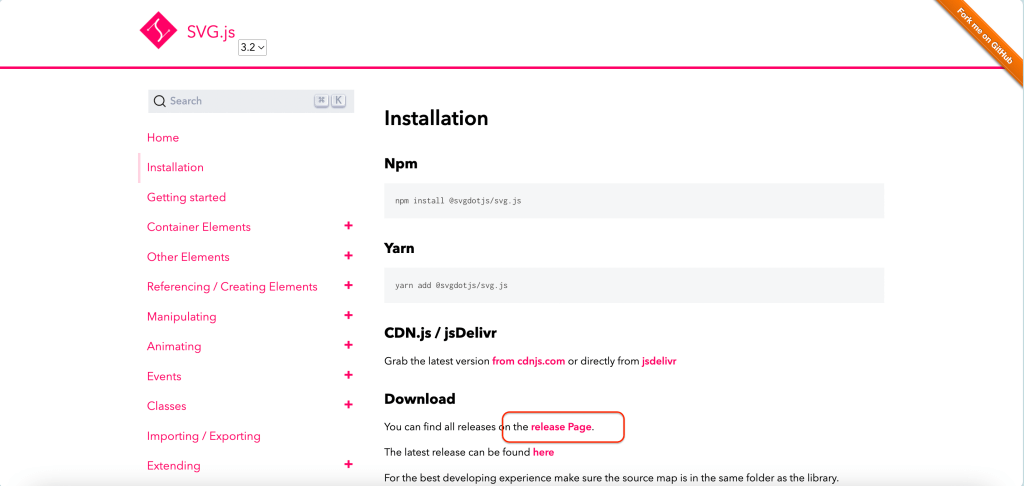
- Go to the link below and select “Release Page”. For Web Browser Extension, we can’t use node.js. You need to download the library file directory into your Extension project.
SVG.js – Installation
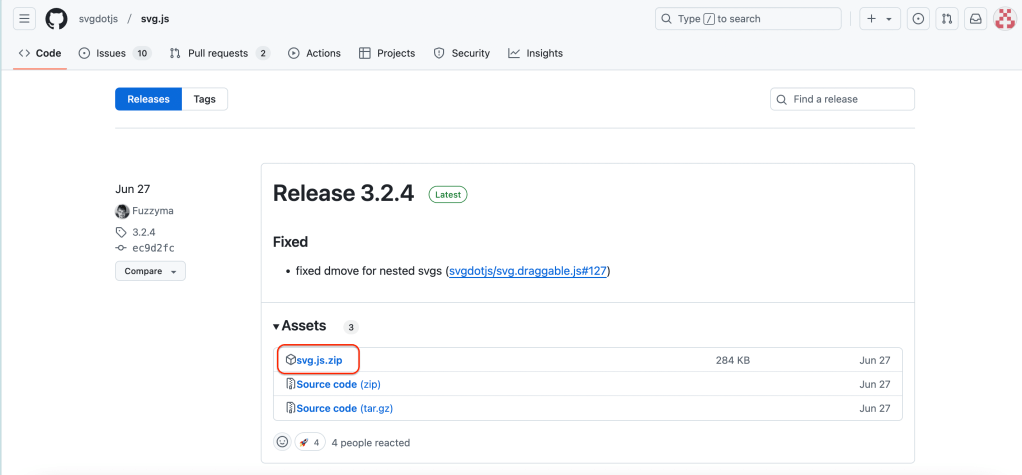
- Download the zip file “svg.js.zip” into your computer.
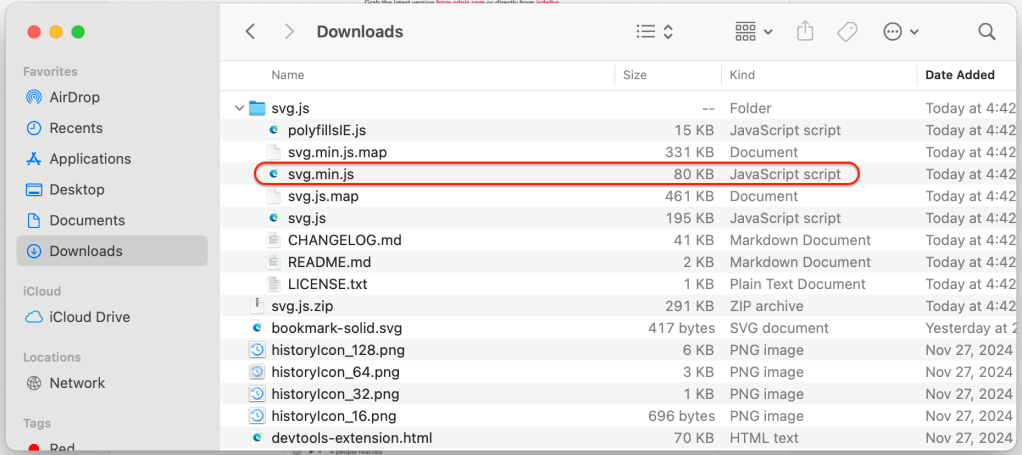
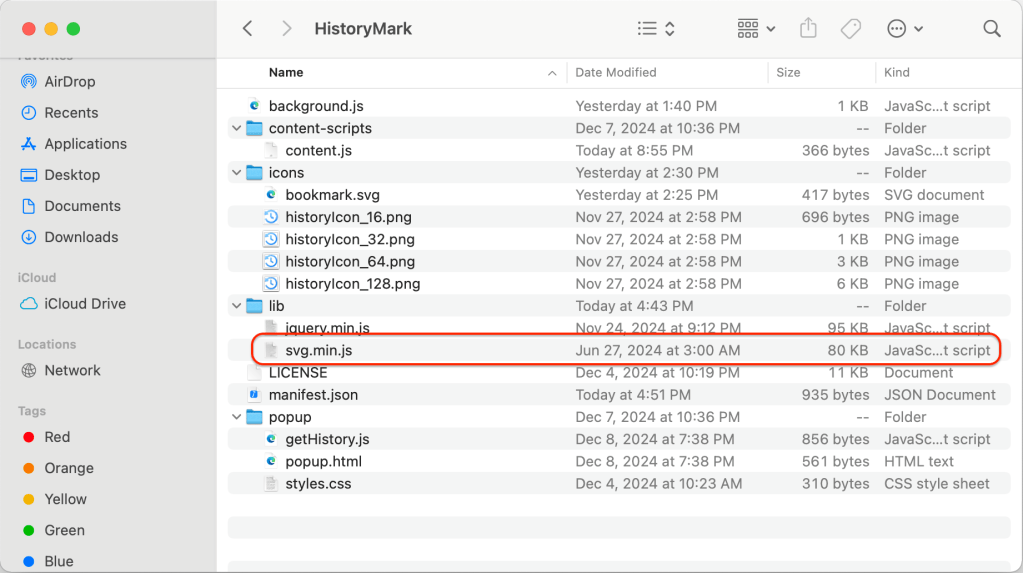
- Extract the zip file, copy “svg.min.js” into your Extension Project folder. I created “lib” folder and saved it in the folder.
2. Declare the SVG.js in the manifest file
In the “manifest.json” file, add the element. I have three JavaScript files for the content script files.
The order of libraries declared in the manifest is important.
First, lib/jquery.min.js is loaded, followed by lib/svg.min.js.
Finally, content-scripts/content.js is loaded, allowing it to use the previous two libraries.
"content_scripts": [
    {
        "matches": ["<all_urls>"],
        "js": ["lib/jquery.min.js",
               "lib/svg.min.js",
               "content-scripts/content.js"]
    }
],
3. Use SVG.js library in the content.js
Now, let’s create a sample code in content.js.
I display a pink rectangle that is made with SVG format when you double click the page.
document.addEventListener('dblclick', (event) => {
    var draw = SVG().addTo('body').size(300, 300).attr({ style: 'position: fixed; top: 100; left: 300;' });
    var rect = draw.rect(100, 100).attr({ fill: '#f06' });
});
The code is so simple.
The first line adds an event listener for the double click.
The second line creates an SVG data with a size of 300×300 in the page’s body using the SVG library.
The third line adds a 100×100 rectangle filled with pink to the SVG data.
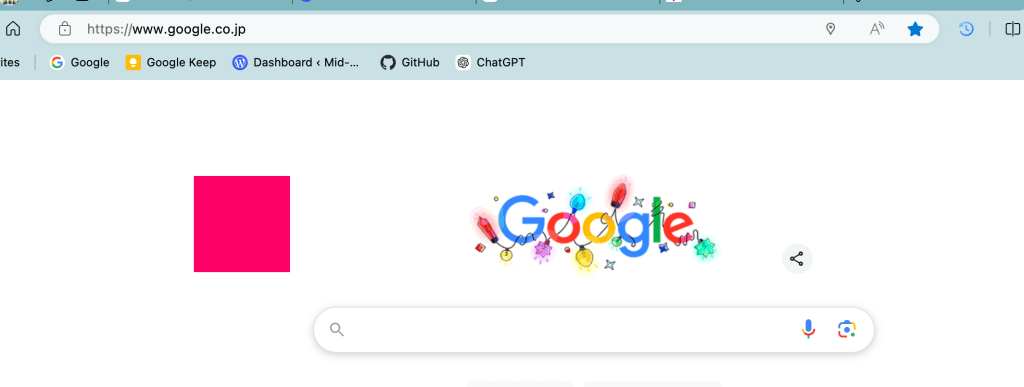
If you load the extension on the Extensions Manager page, a pink rectangle will appear when you double-click on the page.
 Journey of learning
Leave a comment